Getting started.
Your first photos, together.
Create your event, share the link, and let your guests add their photos. No screen or guest app required.
- Create a free event. Enter its name and date, then choose Free on the size step. Create your organizer account and confirm your email; return to your saved setup to create the free event or finish paid checkout. Your dashboard then provides the private link and QR.
- Start when you’re ready. Select Start Event on your dashboard to let guests add photos. Free and paid events wait for you unless you choose Start and end automatically during setup or in Settings. Entering a date or preparing your QR code does not start a new event’s collection window.
- Share your link or QR code. Send it to your guests, or choose Print QR code for a table card. Keep the private link within your guest list.
- Add the first photos. Guests tap Add photos, accept the participation terms, and choose camera or library. A name is optional. Select up to ten photos at a time, confirm permission, and upload.
- Watch your collection grow. Photos appear after screening. Photos still being checked remain private. Guests can like and comment after joining.
- Keep your photos. Download accepted photos from your dashboard. Free events include 50 photos total and 50 contributing guests, with 30 days of gallery access and seven more days for organizer download.
Need more room? Open the paid-event options in your dashboard. An upgrade keeps your event link, QR and photos, and shows the new total allowance before checkout.
An optional screen at your event
Open the live display from your dashboard on a connected TV or computer. Use Show on TV for casting help. Test the venue connection first and keep the display device online.
Reusable organizer rehearsal checklist
- Choose an appropriate guest/photo capacity; check upload, display, gallery and export dates separately.
- Print the QR at a readable size; scan the actual event QR on a guest phone.
- Test camera/library upload, consent, screening and a matching cleared photo on the gallery and optional screen.
- Test venue Wi-Fi, a second guest device, browser fullscreen, TV/projector connection, power and pause/blackout controls.
- Keep the private organizer link separate from the guest QR. Share only permitted sample or consented guest photos.
- For a DJ pilot, confirm at least three distinct real uploading guests plus the live display. Sample demos and founder/QA sessions do not satisfy this criterion.
- Download accepted photos before the recorded export deadline.
Physical phone/TV rehearsal requires the organizer at the venue. Print or reuse this page for each event.
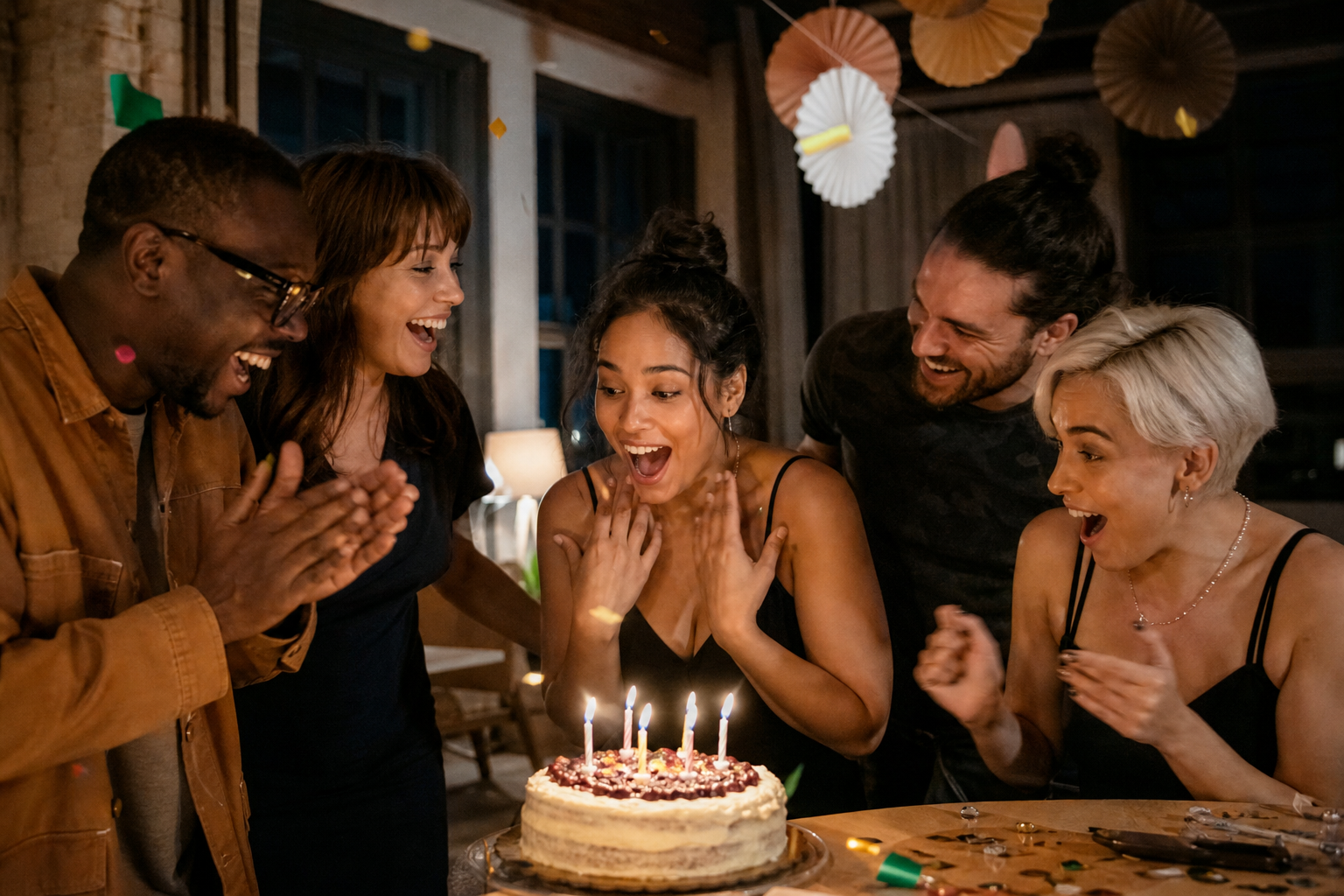
Alex’s Birthday3 perspectives

Scan to tryShare your photos.
Sample event · Live display preview
Need help? Contact support.